Tuesday, November 20, 2007

DISCUSSION: Moderating comments and feedback

Blogs are usually articles with discussion enabled. Once you have created a Blogspot blog and added content such as a blog post with text and a picture, and published the post, others can come and comment on your article. You already commented on an article called How To Blog on my blog called SilkCharm this morning, remember? (read this for a refresher)
Comments on main or home page

Another way is to click on the blog post TITLE

and then click on Post A Comment link.

So that is the two ways people will find the comment section on your blog.

Also for discussion: Do you want to create a post called "Code of Conduct" or "Rules of Engagement" and place that prominently on your site? If you think the subject matter might cause fights, it could be worthwhile.
The decision you have to make now is: what and how can they comment? Let's do that as an activity.

ACTIVITY: Add a picture to your blog

In this section we add a picture to our blog:

Open up your blog post that you created earlier. It is under the Posting tab, EDIT POSTS or go to Dashboard and edit posts from there.

Go to The ADD IMAGE button and you will be presented with an option to either browse your hard disk for an image that is physically on the machine where you are sitting, or you can use a URL to display a picture that is somewhere on the internet i.e. not on your PC.

If you go to http://flickr.com you should find an image you can use. For example, under my Flickr blog at http://flickr.com/silkcharm you will find...

http://flickr.com/photo_zoom.gne?id=750098094&context=set-72157600705403328&size=o

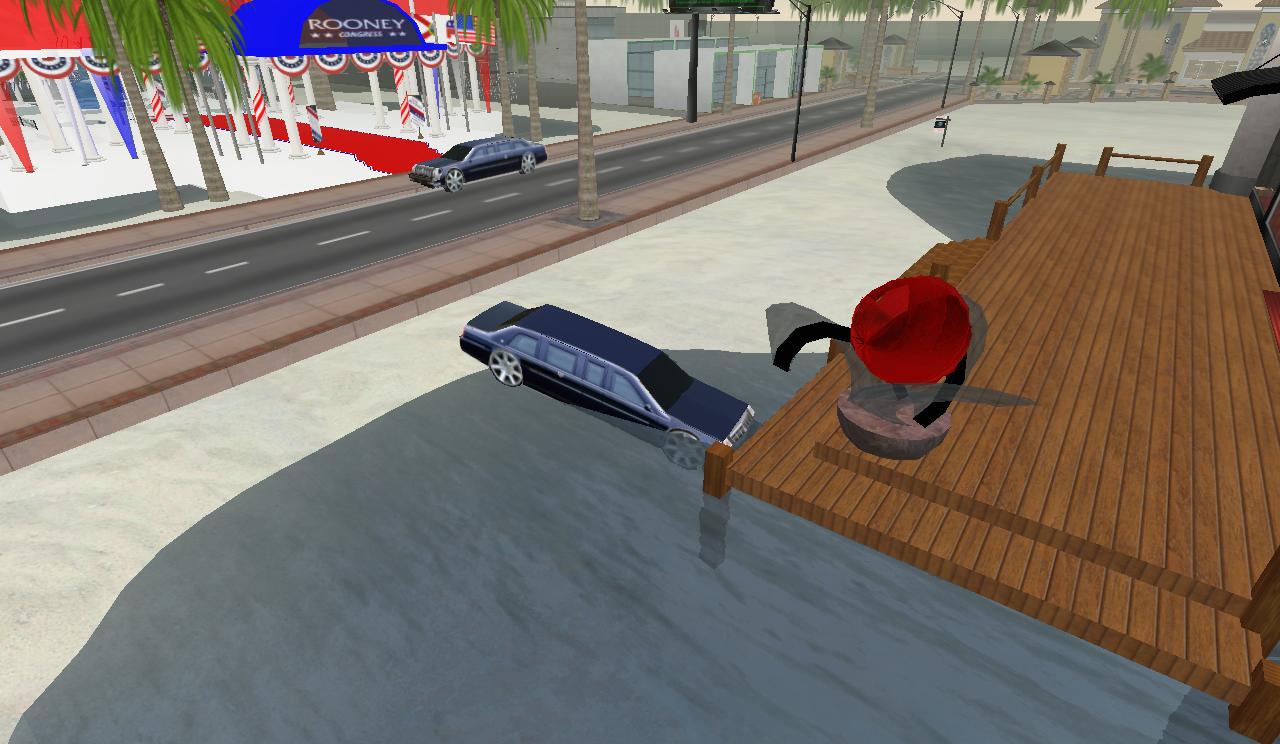
...which a "photo" of my crashed limousine in Second Life (long story, don't ask). Click Upload image and the picture will now be at the top of your blog post. I find the easiest way to move the picture down is to Copy and Paste (EDIT menu).

Sunday, November 18, 2007

DISCUSSION: Different media for your blog

There is a lot of media and other information you can use in your blog. Many sites let you put (or "embed") media (professional or user generated from their site.

Open up the creative commons page and make sure you understand the symbols
http://creativecommons.org/about/licenses/meet-the-licenses

Attribution Non-commercial No Derivatives (by-nc-nd)by nc nd


Attribution Non-commercial Share Alike (by-nc-sa)by nc nd


and so on.

For photos there is Zooomr.com, flickr.com and photobucket.com

For video YouTube.com and so on

For Powerpoint/Keynote presentations, Slideshare.net

ACTIVITY: Create a blog post

Create a title ABOUT ME.

Write this text:
My name is .... and this my blog. I am a student in a class at the University of Sydney and I like to make my text red and bold.

It's good to be connected to Laurel Papworth's SilkCharm blog.
Change the word "red" to red, and "bold" to bold. Then highlight the text "SilkCharm" and click the LINK button ( the world with a link on top of it). Make sure the pop up field says "http://silkcharm.blogspot.com".

Now type in "Administration" in the Label field

Saturday, November 17, 2007

DISCUSSION: How to create a blog post

Click POSTING
TITLE: What is the title of your blog post?
TIP: In general use major keywords in the Title. The keywords will help the search engine find you and may increase readership.
COMPOSE MODE: easiest to use (but if you know HTML, feel free to use EDIT HTML mode)
The next bar down is a menu bar for font and layout, with a PREVIEW menu.
Clicking POST OPTIONS gives another menu


You can change date and time here, Allow reader comments ,
Backlinks shows the people who are linking to you (you should generally allow them)

LABELS: Are like the chapter headings in a book. For example, in this blog, we use ADMINISTRATION for general blog posts, DISCUSSION for specific information on how to blog, ACTIVITY for the "to do"activities.

SAVE NOW - save but don't publish it for people to see.
PUBLISH POST - save and show it to the world (publish)

Friday, November 16, 2007

ACTIVITY: Manage your Profile on Blogger

Click on DASHBOARD on the Blogger header.

If you have a popup message about "creating a post" get rid of it - we aren't writing an article/blogpost just yet. Please click OK and it will take you to the right screen.

Your dashboard won't have a picture yet or look quite like this - but close enough.
Click EDIT PROFILE.
fill in as many fields as you want to, then click Save Profile

Discussion: Privacy and Identity on the Internet

AIM: Brief discussion to highlight and question what individuals feel comfortable/uncomfortable about revealing on their blog. Points for discussion:
  • Photographs of family and friends
  • Naming family and friends particularly children
  • Full name - are you a consultant? a hobbyist?
  • Email address - spam protection use (at)
  • Location - if you go on holidays are you in the white pages?
  • Hi, my name is XYZ and I am going on holidays on Saturday and I live at Flat 123, xyz road, suburb and my children are 6 and 7 and they go to this school and ...
  • birthdates and mother's maiden name
What would you never reveal about yourself? What is very important, semi-important and not important at all? How does identity theft occur?