Showing posts with label Activity. Show all posts

Tuesday, November 20, 2007

ACTIVITY: Moderate Comments on Your Blog

Go to Dashboard (top right) -> Settings or in some other way make sure you can get to this screen:
What then appears on the screen is this:
Who can comment: Registered User, Anyone, Only Members of This Blog.
Default for posts: Do you want the default (normal) setting to be comments on or off?
Backlinks: list the sites that link to you
Enable comment moderation means you want to be emailed when someone writes a comment, and you have to manually approve whether or not the comment shows publicly.

Word Verification is that "text as a picture" or CAPTCHA that we saw earlier. Always good to turn it on, unless you work a lot with disabled people who have visual impairment etc.

I suggest being emailed comments so you know when someone has written in.

ACTIVITY: Add a picture to your blog

In this section we add a picture to our blog:

Open up your blog post that you created earlier. It is under the Posting tab, EDIT POSTS or go to Dashboard and edit posts from there.

Go to The ADD IMAGE button and you will be presented with an option to either browse your hard disk for an image that is physically on the machine where you are sitting, or you can use a URL to display a picture that is somewhere on the internet i.e. not on your PC.

If you go to http://flickr.com you should find an image you can use. For example, under my Flickr blog at http://flickr.com/silkcharm you will find...

http://flickr.com/photo_zoom.gne?id=750098094&context=set-72157600705403328&size=o

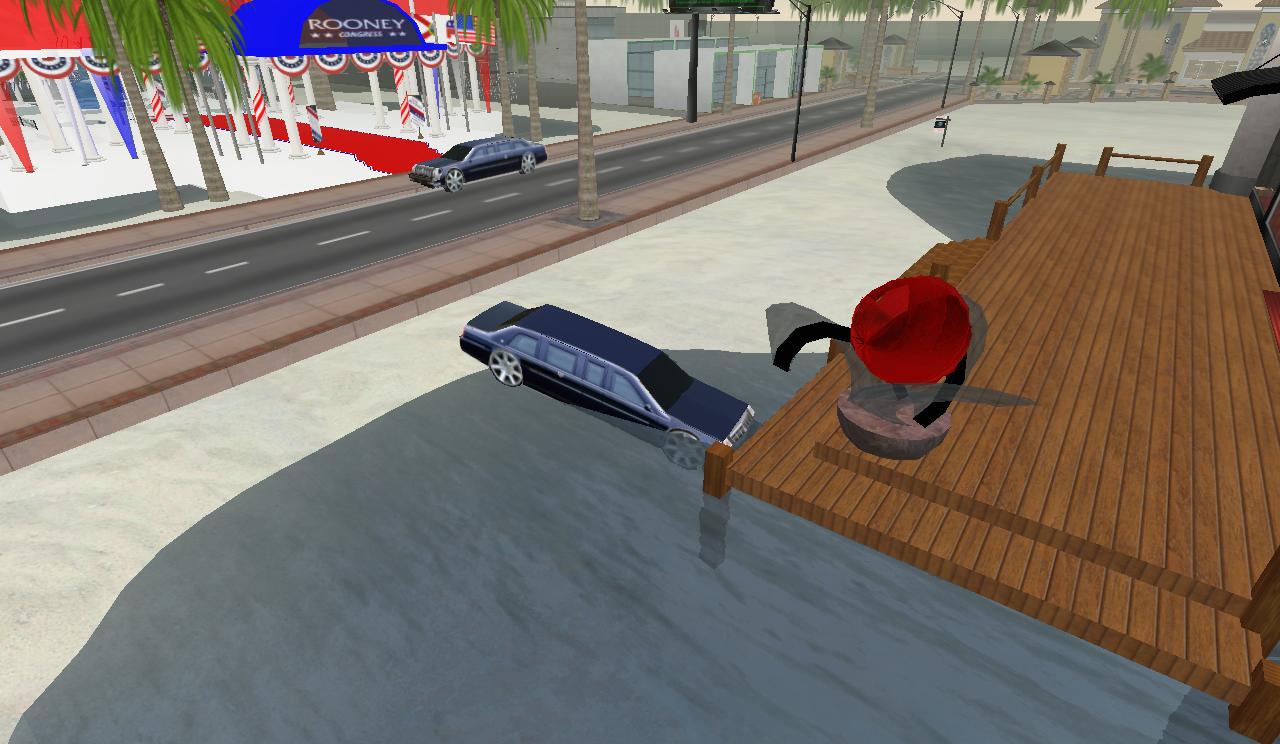
...which a "photo" of my crashed limousine in Second Life (long story, don't ask). Click Upload image and the picture will now be at the top of your blog post. I find the easiest way to move the picture down is to Copy and Paste (EDIT menu).

Sunday, November 18, 2007

ACTIVITY: Create a blog post

Create a title ABOUT ME.

Write this text:
My name is .... and this my blog. I am a student in a class at the University of Sydney and I like to make my text red and bold.

It's good to be connected to Laurel Papworth's SilkCharm blog.
Change the word "red" to red, and "bold" to bold. Then highlight the text "SilkCharm" and click the LINK button ( the world with a link on top of it). Make sure the pop up field says "http://silkcharm.blogspot.com".

Now type in "Administration" in the Label field

Friday, November 16, 2007

ACTIVITY: Manage your Profile on Blogger

Click on DASHBOARD on the Blogger header.

If you have a popup message about "creating a post" get rid of it - we aren't writing an article/blogpost just yet. Please click OK and it will take you to the right screen.

Your dashboard won't have a picture yet or look quite like this - but close enough.
Click EDIT PROFILE.
fill in as many fields as you want to, then click Save Profile

ACTIVITY How to create a blog on Blogger

If you already have a Blogger/Blogspot blog, you may want to sit this part out.

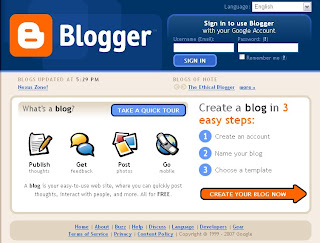
Please go to the Blogger start page - it looks like this:

If you DO have a Google, GMail, Blogger, or other Google account, please log in at the top right.
If you DON'T have a Google account yet, click the Create Your Blog Now orange arrow.

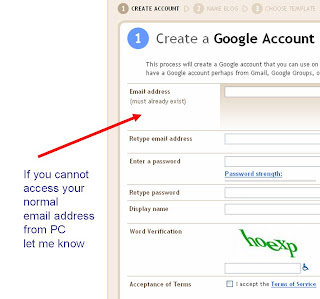
Note: If you don't have a Google account you will need to create a new account. Google will send a confirmation message to your email address - perhaps Yahoo or Hotmail.

If you don't have access to an email address today, on this PC (maybe you auto-login at home with Microsoft Outlook) let me know and I will loan you a temporary email address. Don't forget to change it when you get home!

Now name your blog:
Don't forget to check availability of the name you want. Click CONTINUE.
Please choose Minima. Yes, I know the other templates are pretty, but when I say "click top right", for instance, we need to all have the same thing in the "top right"corner. You can play around with the templates when you get home!

Yay!

ACTIVITY: How to Post a Comment on a Blog

Go to the blog post called how to blog course at silkcharm.blogspot.com.

You will notice at the bottom of the article a Post A Comment options - it looks like this:
When you click through, you get this screen:

You write your comment in the box at the top, type teh code in for CAPTCHA, Choose an identity or profile by either logging into Google/Gmail, choosing other, or staying anonymous. You can be emailed follow up responses so you don't need to keep coming back to check.